
Introduction
Most of us lose hours every week to small admin jobs. Checking the calendar, replying to the same kinds of emails, moving a meeting, adding a note to the CRM, creating a task so we don't forget something. None of it is hard, but it never stops.
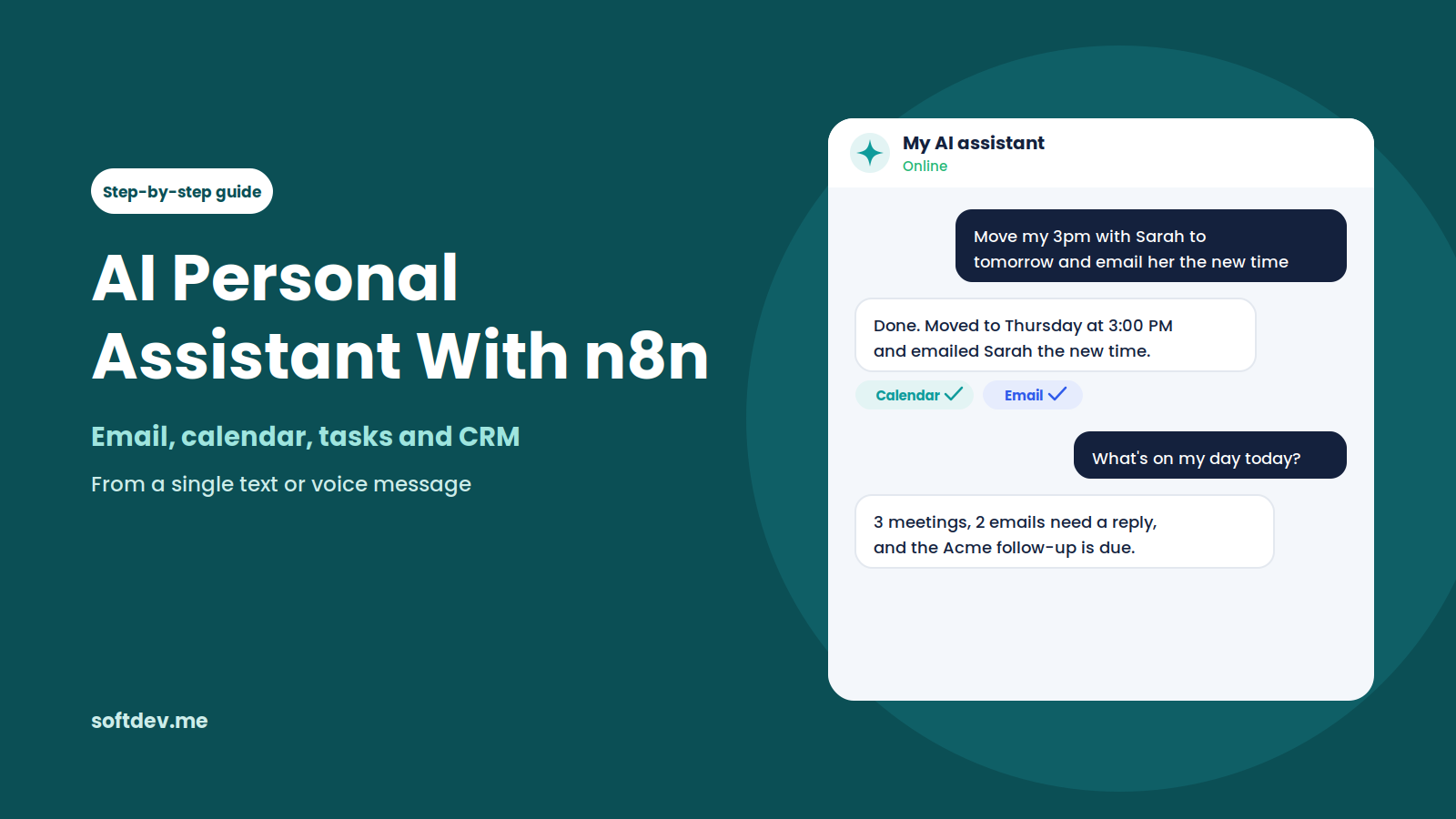
Now imagine sending a quick message like "Move my 3pm call with Sarah to tomorrow and email her the new time," and it just gets done. No apps to open, no forms to fill in.
That is what an AI personal assistant built in n8n can do. In this guide, we explain how it works in plain language, walk through how to build one step by step, and cover the mistakes to avoid so your assistant stays safe and useful.
What is an n8n AI personal assistant?
An n8n AI personal assistant is an AI agent that you talk to in plain language, by text or by voice. It understands what you want, then uses your connected apps to get it done.
It is different from a normal chatbot. A chatbot can answer questions. An assistant can take action: it can check your calendar, send an email, create a task, or update a contact in your CRM.
n8n is a great place to build one because it already connects to hundreds of apps, and its AI Agent node can decide which of those apps to use for each request. You do not need to write a separate automation for every possible command.
What it can do for you
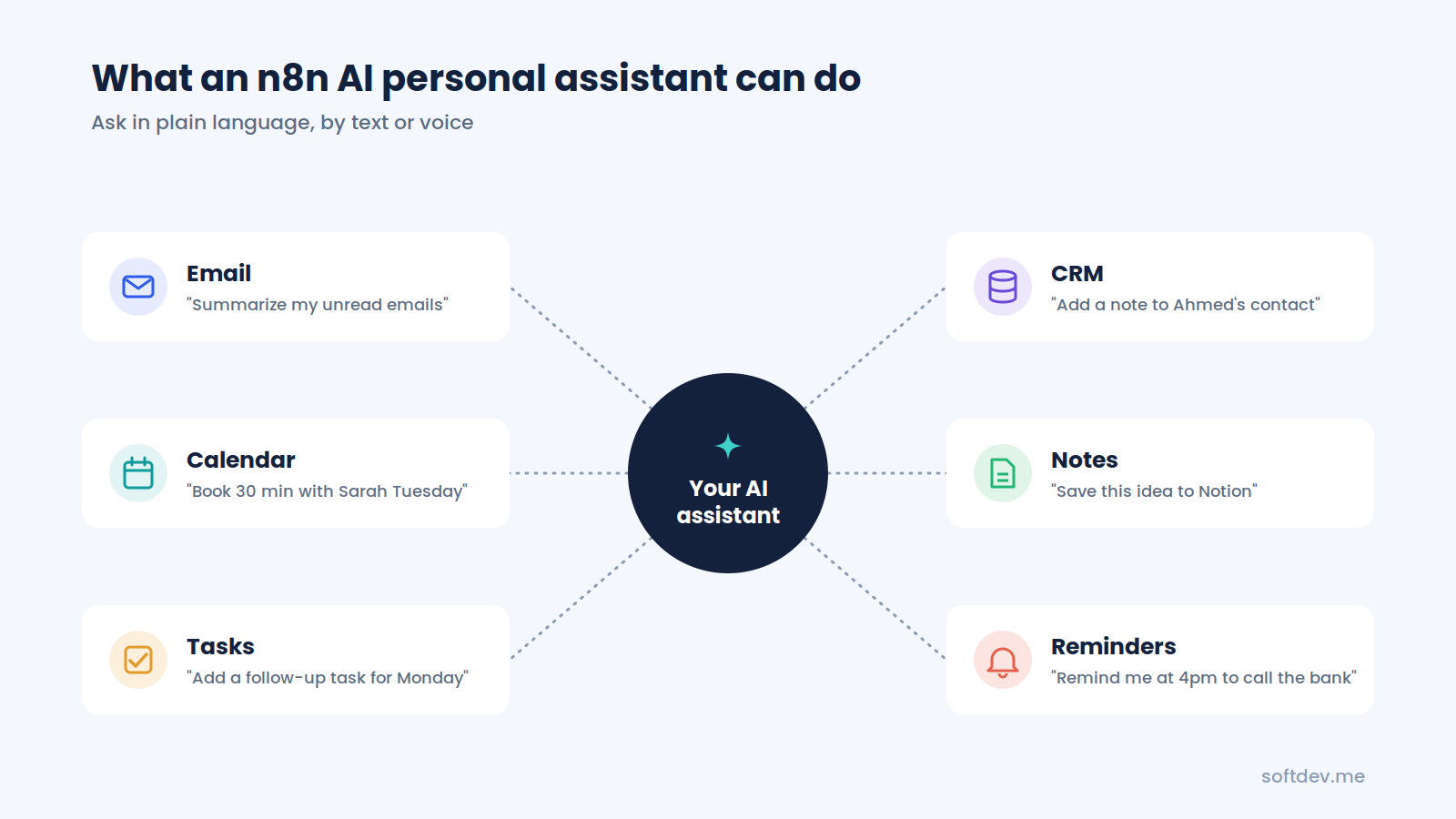
Here are the kinds of jobs a personal assistant built in n8n can handle:
| Area | Example request |
|---|---|
| "Summarize my unread emails from today" or "Reply to John and say I'll send the proposal Friday" | |
| Calendar | "What's on my calendar tomorrow?" or "Book 30 minutes with Sarah next Tuesday afternoon" |
| Tasks | "Add a task to follow up with the Acme quote on Monday" |
| CRM | "Add a note to Ahmed's contact that he wants a demo next week" |
| Notes and docs | "Save this idea to my Notion ideas page" |
| Reminders | "Remind me at 4pm to call the bank" |
| Research | "Find the latest news about our competitor and send me a short summary" |
You can send these requests from wherever is easiest for you: Telegram, Slack, WhatsApp, SMS, a simple web chat, or even a voice command through Siri on your phone.
How it works
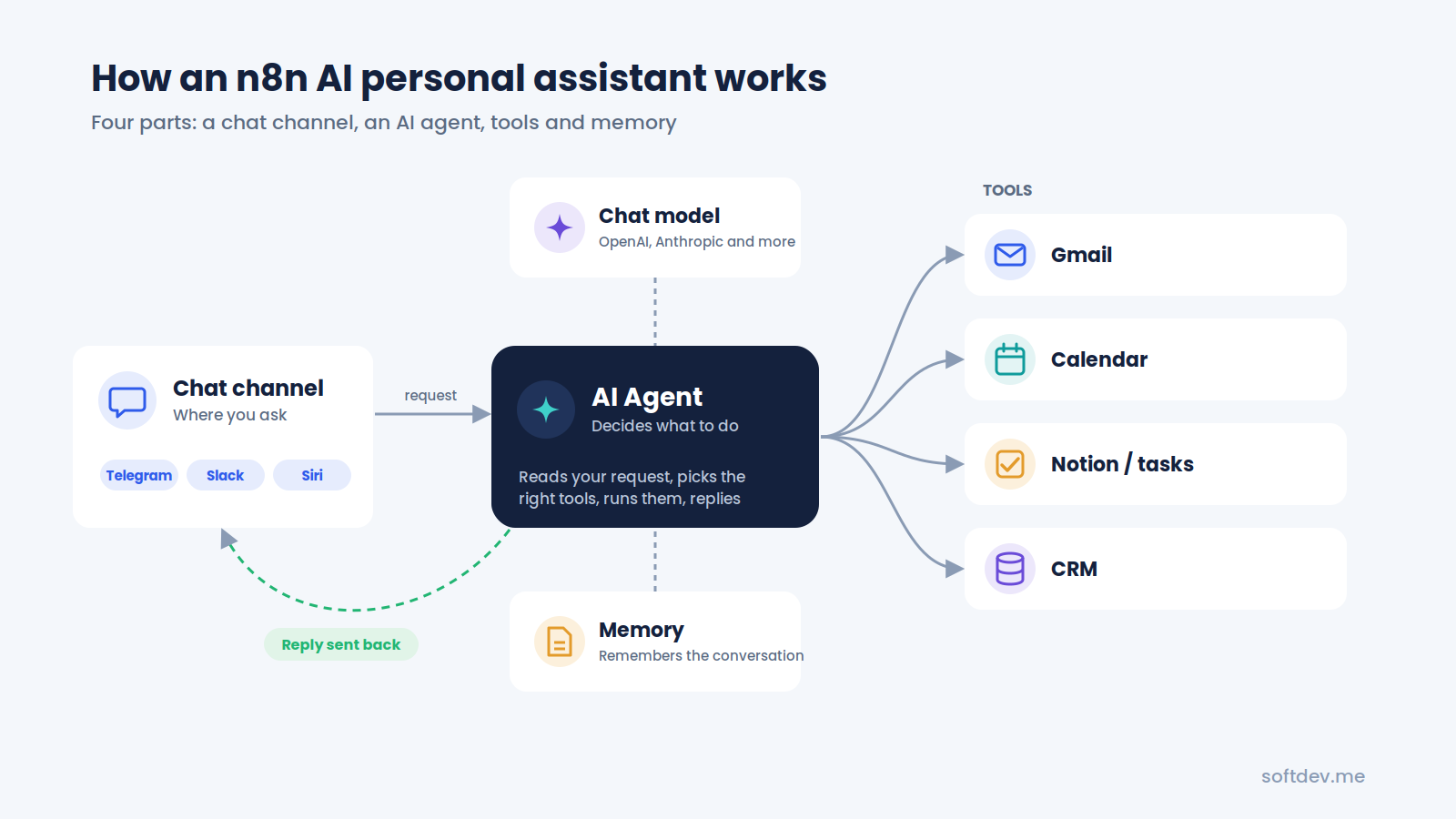
Every n8n AI personal assistant is built from the same four parts.
1. A chat channel. This is where you send your requests. It could be Telegram, Slack, a web chat, SMS, or a webhook that Siri calls when you speak a command. In n8n, this is the trigger that starts the workflow.
2. The AI Agent. This is the brain. n8n's AI Agent node uses a chat model, like one from OpenAI or Anthropic, to understand your request. It then looks at the tools you have connected and decides which ones to use, and in what order, to complete the task (n8n docs).
3. Tools. Tools are the apps your assistant can use. n8n supports a long list of app tools, including Gmail, Google Calendar, Google Tasks, Notion, Slack, Telegram, HubSpot, Todoist, and more. You can also give it an HTTP Request tool to call any API, or a sub-workflow for more complex jobs.
4. Memory. Memory lets the assistant remember what you said earlier in the conversation, so you can say "move it to Friday" and it knows what "it" means. n8n's built-in memory does not persist between sessions, so for longer-term memory, you can connect Postgres or Redis chat memory.
When you send a message, the flow looks like this: your message reaches the trigger, the AI Agent reads it, picks the right tools, runs them, and sends you a short reply confirming what it did.
How to build one, step by step
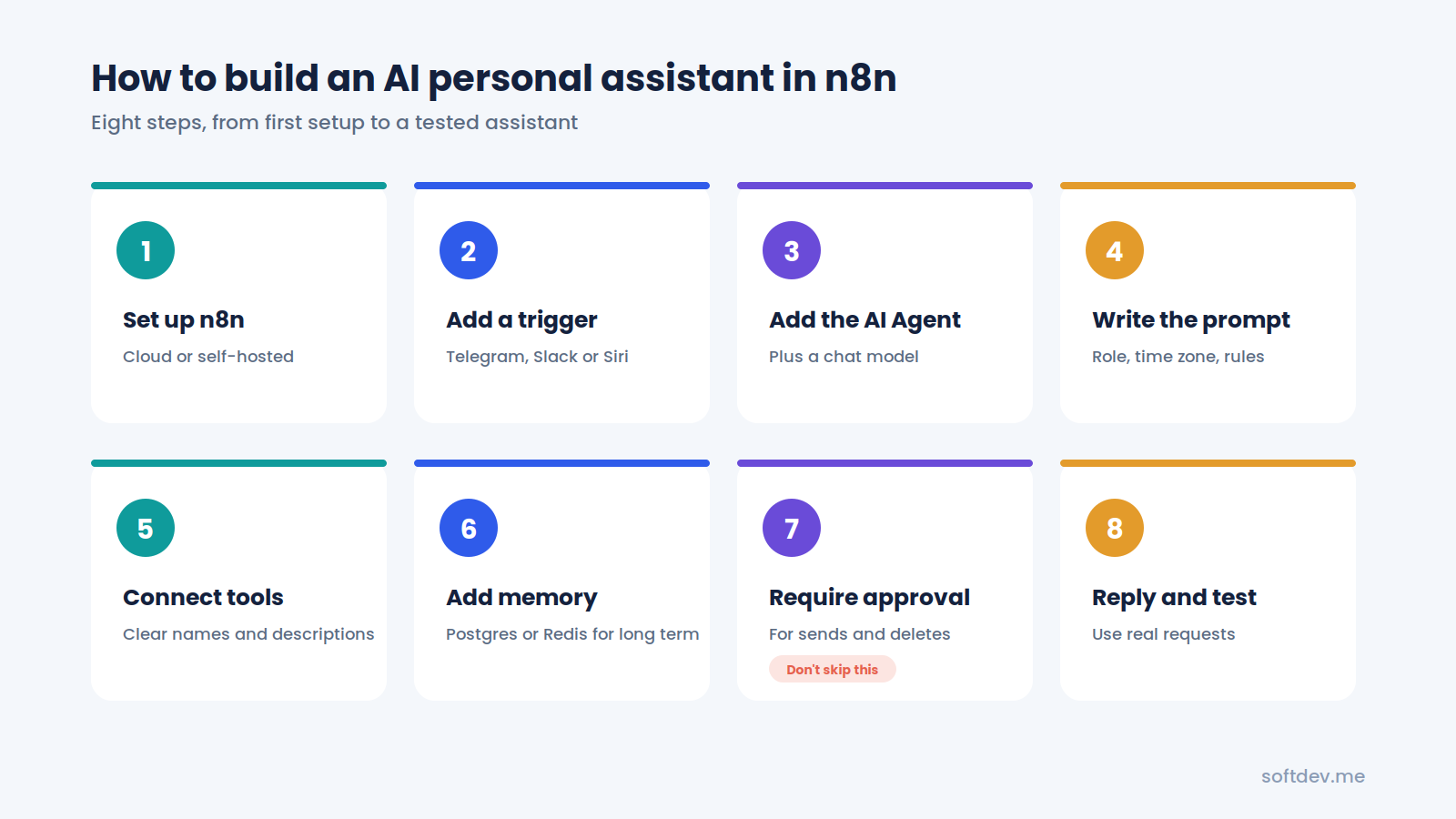
You do not need to be a developer to build a simple version, but some comfort with n8n helps. Here is the process we follow.
Step 1: Set up n8n. Use n8n Cloud if you want to get started quickly, or self-host n8n if you want full control over your data.
Step 2: Add a trigger. Pick the channel you will use to talk to your assistant. A Telegram trigger is one of the easiest to start with. If you want voice commands, a Webhook trigger works well with an iPhone Shortcut that sends your Siri dictation to n8n.
Step 3: Add the AI Agent node. Connect it to your trigger, then attach a chat model, such as an OpenAI or Anthropic model, using your API key.
Step 4: Write a clear system message. This tells the assistant who it is and how to behave. Keep it short and specific. For example:
You are my personal assistant. My time zone is Asia/Karachi.
Use the calendar tool for anything about meetings or availability.
Use the email tool to read and draft emails.
Never send an email or delete anything without asking me first.
Keep replies short and confirm what you did.
Step 5: Connect your tools. Add tool nodes for the apps you want it to use, like Gmail, Google Calendar, Notion, or your CRM. Give each tool a clear name and description, because the AI uses those descriptions to decide which tool fits each request.
Step 6: Add memory. Attach a memory node so the assistant can follow a conversation. For memory that lasts longer than one session, use Postgres or Redis chat memory.
Step 7: Add human approval for risky actions. n8n lets you require approval before the agent runs certain tools. When the AI wants to use one, the workflow pauses and sends you an approval request in a channel like Slack or Telegram (n8n docs). Use this for sending emails, deleting records, or anything you cannot undo.
Step 8: Send a reply and test. End the workflow by sending the agent's answer back to your chat. Then test it with the kinds of messages you will really send, including vague ones like "push my next meeting back an hour."
Useful things to automate first
The best way to start is with a few small jobs you do every day. Once those work well, add more. Here are six that give quick wins:
| Assistant job | What it does | Tools it needs |
|---|---|---|
| Morning brief | Sends you today's meetings, top emails, and due tasks every morning | Calendar, email, task app |
| Inbox summary | Summarizes unread emails and flags the ones that need a reply | |
| Meeting scheduling | Finds a free slot and books the meeting when you ask | Calendar |
| Quick task capture | Turns "remind me to..." messages into tasks with due dates | Task app or Notion |
| CRM notes | Adds a note or updates a contact after a call, just by telling it what happened | CRM |
| Follow-up drafts | Drafts a reply to an email so you only need to review and send |
Notice that most of these only read data or create drafts. That makes them safe to start with. You can let the assistant send emails or change records later, once you trust how it behaves.
What it costs
An n8n AI personal assistant has two main costs: n8n itself and the AI model.
n8n. n8n charges per workflow execution, not per step. Each message you send to your assistant is usually one execution, no matter how many tools it uses. n8n Cloud starts at €20 a month billed annually for 2,500 executions, and Pro is €50 a month for 10,000. You can also self-host the free Community Edition and only pay for your own server (n8n pricing).
The AI model. You pay the AI provider, like OpenAI or Anthropic, for each request. For short personal assistant messages, this is usually a small amount per request, but it depends on the model you choose and how much text it reads. Summarizing a full inbox costs more than checking one calendar slot.
For one person sending a few dozen requests a day, the n8n Starter plan is usually enough, and the AI costs stay low.
Privacy, safety and common mistakes
A personal assistant has access to your email, calendar, and CRM, so it is worth setting it up carefully.
Protect your data. If you handle sensitive information, consider self-hosting n8n so your data stays on your own server. n8n Cloud data is hosted in the EU, in Frankfurt.
Give it only the access it needs. If the assistant only needs to read your calendar, do not give it permission to delete events.
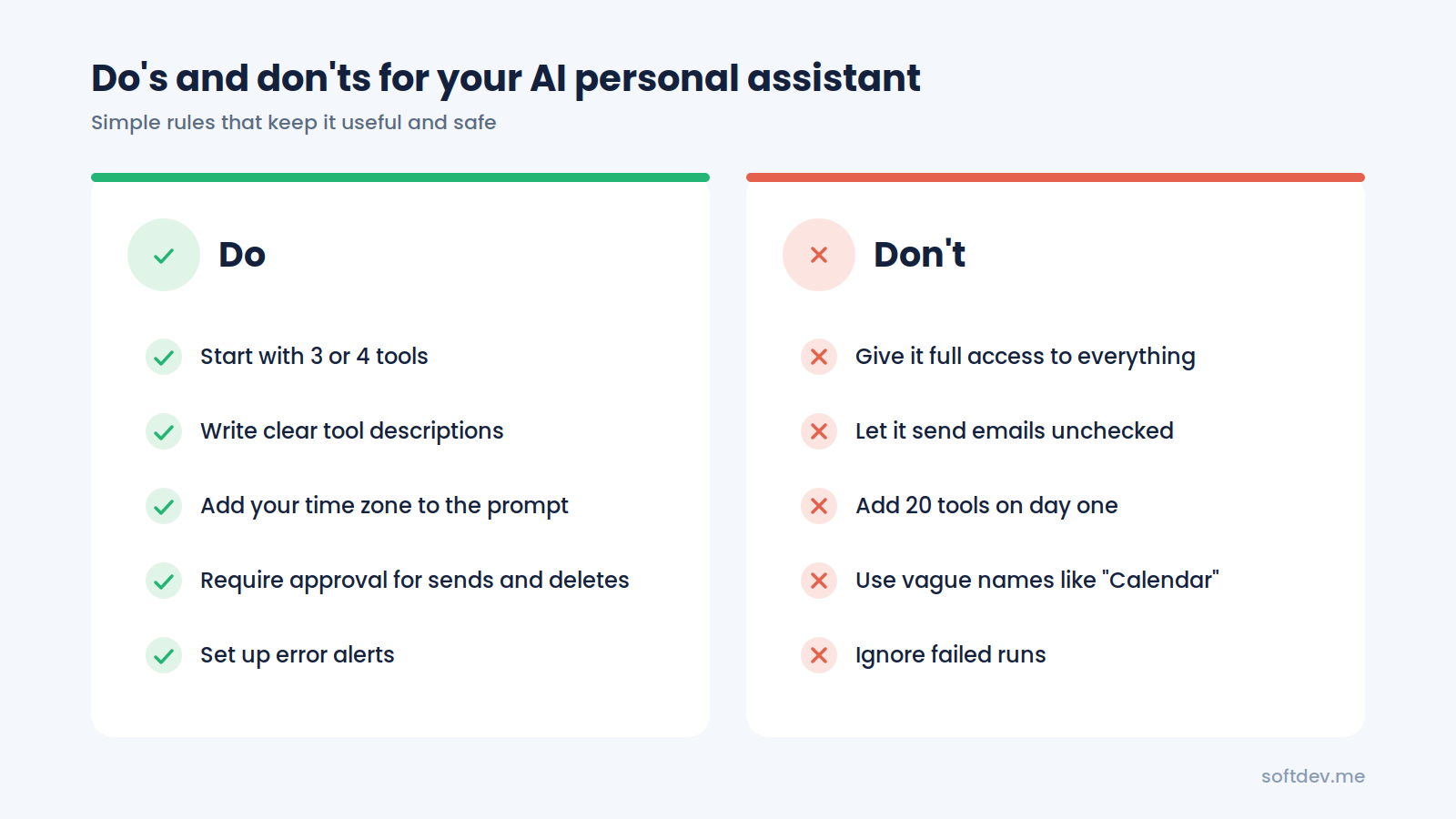
Watch out for these common mistakes:
- Too many tools at once. An agent with 20 tools makes more wrong choices. Start with three or four and add more slowly.
- Vague tool descriptions. The AI picks tools based on their names and descriptions. "Calendar" is vague; "Check free time and book meetings in my Google Calendar" is clear.
- No time zone in the prompt. Without it, "tomorrow at 3" can land in the wrong time zone.
- Letting it send without approval. Use human approval for sending emails, deleting data, or anything that cannot be undone.
- No error alerts. Set up an error workflow so you know when something fails, instead of finding out days later.
Conclusion
An AI personal assistant built in n8n can take a lot of small, repetitive admin off your plate. You send a quick text or voice message, and it handles your email, calendar, tasks, and CRM using the apps you already have.
The setup comes down to four parts: a chat channel, an AI Agent, the tools it can use, and memory. Start with a few safe jobs, like a morning brief or inbox summary, write a clear system message, and add human approval for anything that cannot be undone. Once you trust it, you can keep adding more.
The result is fewer interruptions, faster replies, and more time for the work that actually needs you.
Frequently asked questions
Do I need to know how to code to build an AI assistant in n8n?
Not for a basic version. n8n's visual editor and AI Agent node let you connect apps without writing code. Some technical knowledge helps when you want custom logic, voice commands, or connections to less common tools.
Which AI model should I use?
n8n's AI Agent works with several chat models, including OpenAI and Anthropic models. Start with a fast, low-cost model for everyday tasks, and only switch to a more powerful one if it struggles with your requests.
Can I talk to my assistant by voice?
Yes. A common setup is an iPhone Shortcut that sends your Siri dictation to an n8n webhook, which then passes the request to your AI Agent.
Is it safe to give an AI assistant access to my email?
It can be, if you set it up carefully. Give it only the permissions it needs, use human approval before it sends emails or deletes anything, and consider self-hosting n8n if you handle sensitive data.
How much does it cost to run?
For one person, n8n Cloud's Starter plan at €20 a month billed annually is usually enough, plus a small amount for the AI model. Self-hosting n8n is free, apart from your server costs.